

Your speaking coach,
now in Kimi
Ask Kimi about the latest IELTS questions, your progress, and the feedback on your saved practice.
- Kimi desktop app
- Free Joe Speaking account
- Read-only
Read-only, and only yours.
This is the screen you approve before any assistant can read your practice.
Only your account
Every answer comes from the Joe Speaking account you approve, and only from practice that has synced to it.
No audio or payments
It reads saved practice details. It never receives your recordings, payment details, or credit balance.
Disconnect anytime
Remove access from Connected Apps in your settings whenever you choose.
Kimi wants to connect
Read-onlyLet Kimi read your practice?
Signed in as
you@example.com
It will be able to read
- Search the public IELTS and CELPIP question banks
- Read your cloud-synced Live Conversation history
- Read your cloud-synced Recording Practice history, including transcripts
- Read your Collection items
- Read your scores, learner feedback, and practice progress
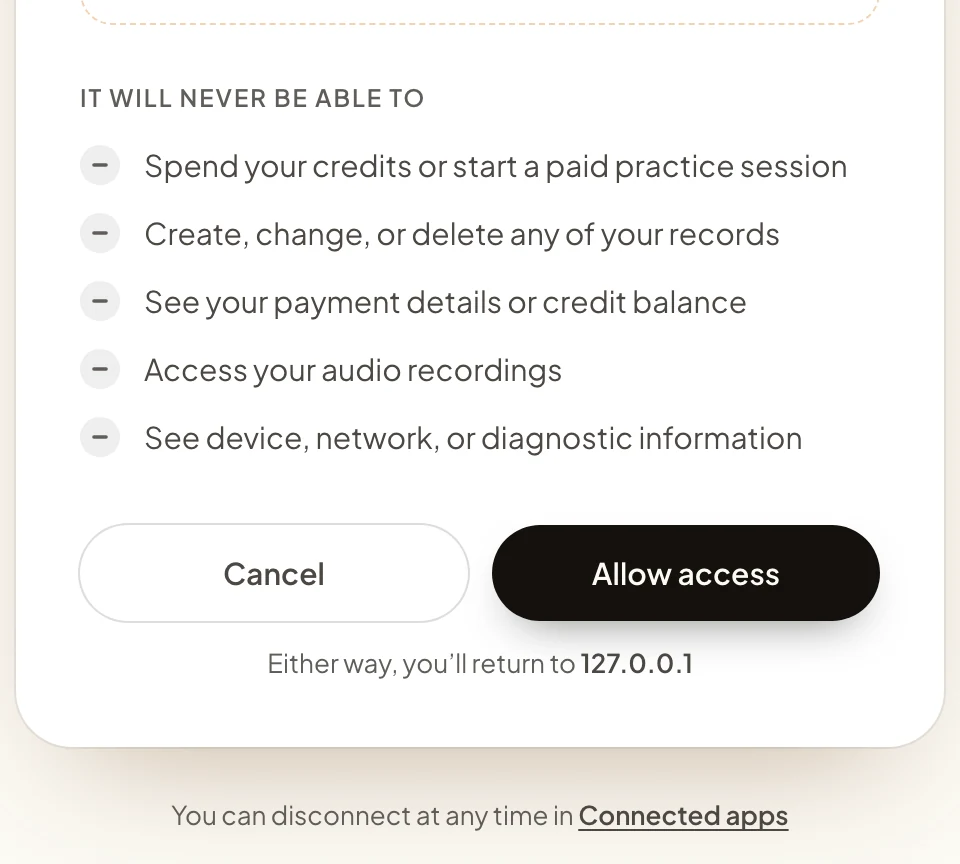
It will never be able to
- Spend your credits or start a paid practice session
- Create, change, or delete any of your records
- See your payment details or credit balance
- Access your audio recordings
- See device, network, or diagnostic information
Add Joe Speaking to Kimi
Joe Speaking is waiting for review in Kimi’s plugin marketplace. Until it’s listed, add it yourself in Kimi Work. It takes about two minutes.
Copy this first. You’ll paste it in step 3.
Copy it as it is. It tells Plugin Builder where Joe Speaking is and how it signs in.
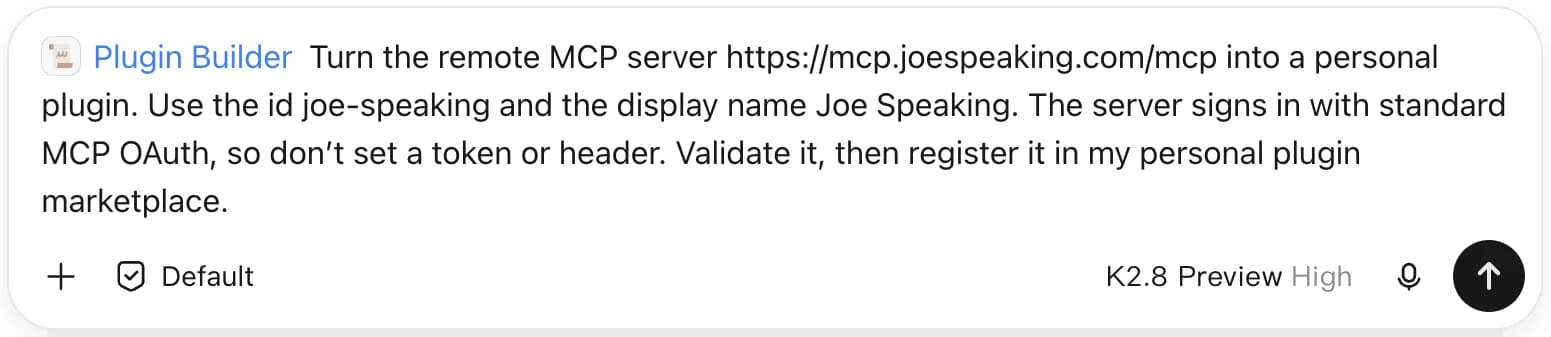
Turn the remote MCP server https://mcp.joespeaking.com/mcp into a personal plugin. Use the id joe-speaking and the display name Joe Speaking. The server signs in with standard MCP OAuth, so don’t set a token or header. Validate it, then register it in my personal plugin marketplace.Seven steps
Step 1 of 7
Open Kimi Work
In the Kimi desktop app, choose Work at the top left, then New task.
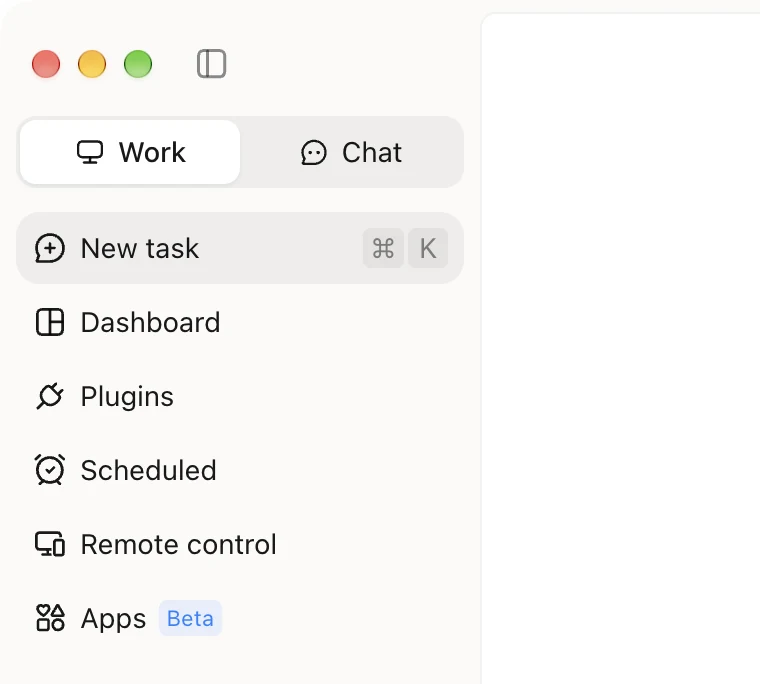
Open Kimi Work
In the Kimi desktop app, choose Work at the top left, then New task.
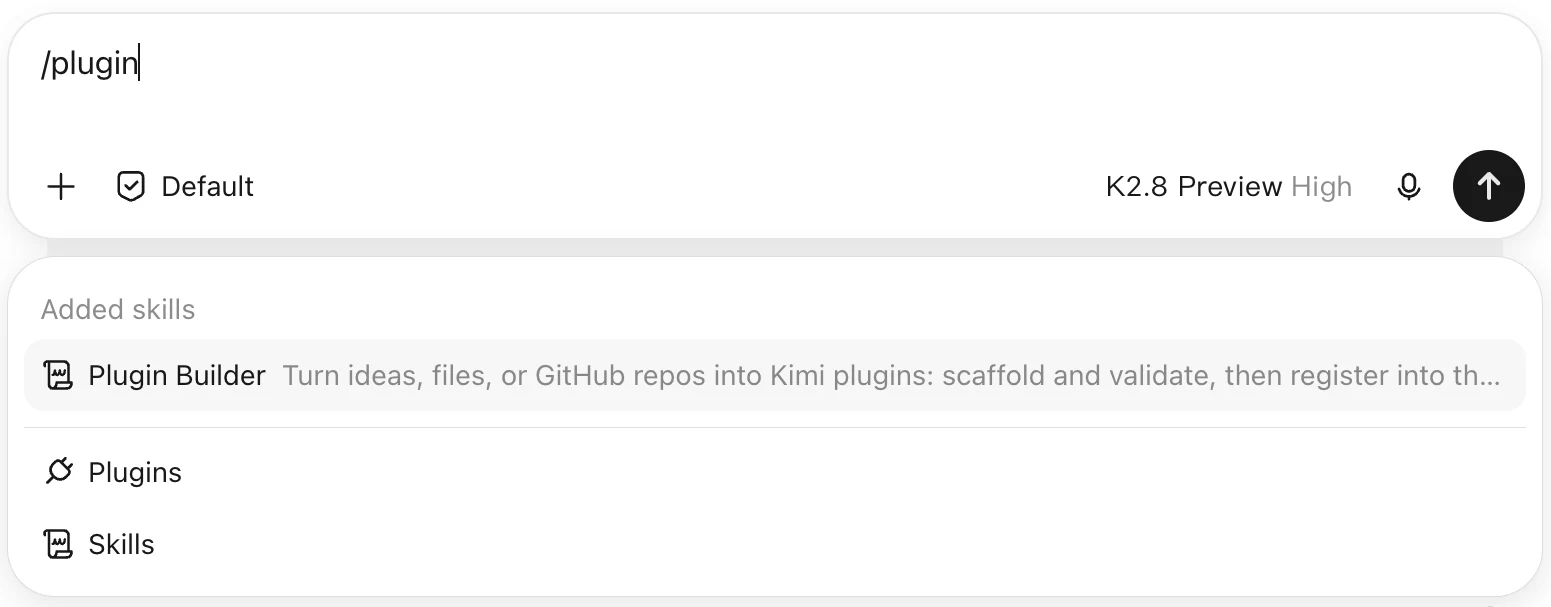
Start Plugin Builder
Type /plugin in the message box and choose Plugin Builder.
Send the setup message
Paste the setup message you copied above and send it. Kimi builds the plugin and adds it to your personal plugins.
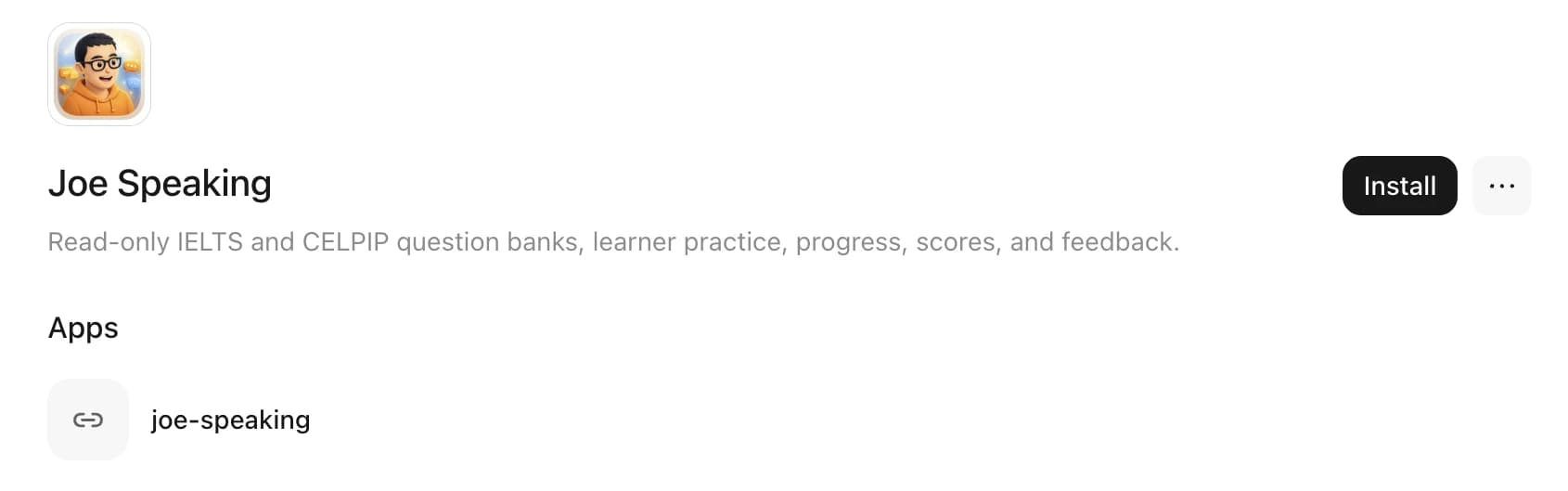
Install Joe Speaking
Open Plugins, choose Personal, open Joe Speaking, and choose Install.
Sign in and allow read-only access
Your browser opens Joe Speaking. Sign in and choose Allow access. The app shows up as kimi-code (…), which is the Kimi desktop app. The page then moves to 127.0.0.1: that’s Kimi on your computer receiving the sign-in, so go back to Kimi. It’s read-only: it can’t spend credits, change or delete records, or access your recordings.
Look for Connected
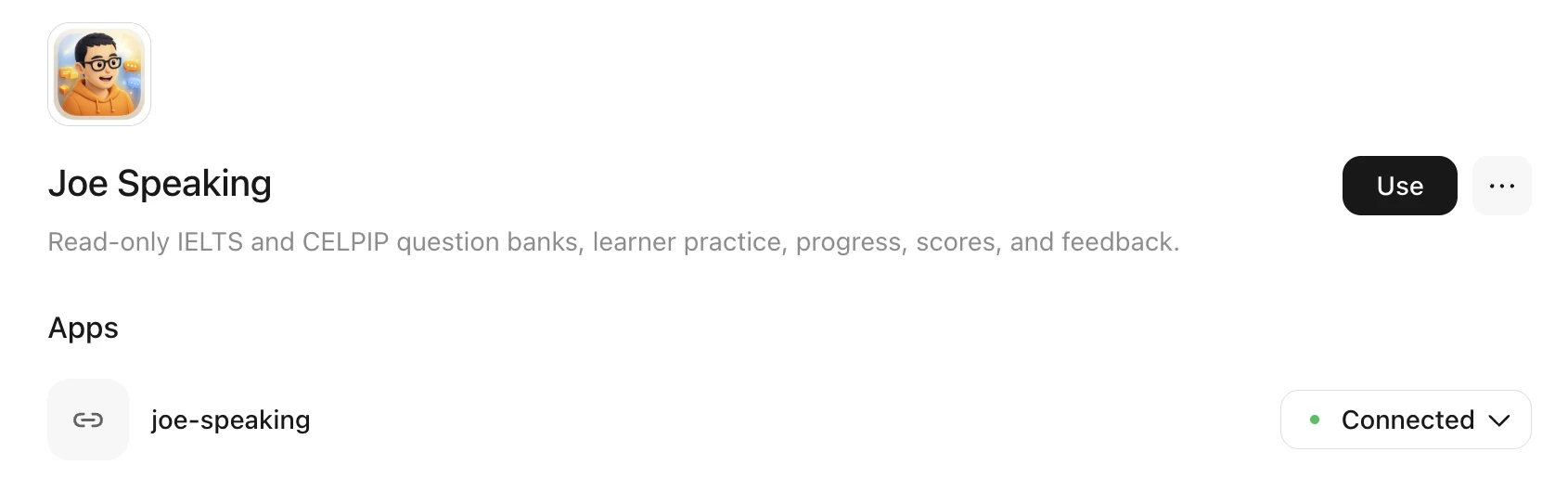
Back in Kimi, the Joe Speaking page shows Connected.
Ask in a new task
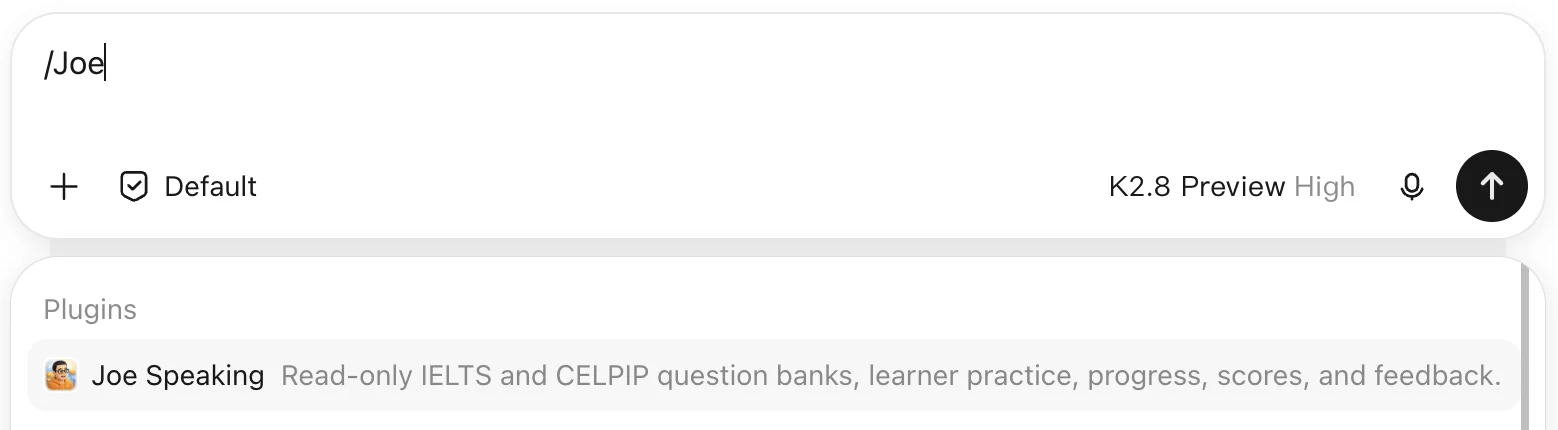
Start a new task, type /Joe and choose Joe Speaking, then ask something like “What’s new in the latest IELTS Speaking question bank?”
On a computer
Plugins need Kimi Work, which runs in the Kimi desktop app on a Mac with Apple silicon or a Windows PC. On Intel Macs, the app has Kimi Chat only.
Joe Speaking also connects to